
 Coby Agency
If your GA4 reports show a mysterious traffic spike on the same day every month, your cookie banner is probably the culprit. Cookiebot scans your website every month to keep its cookie declaration up to date, and that scan behaves like a real visitor: it loads your pages, fires your tags and lands straight in your reports.
This guide shows you how to exclude Cookiebot traffic in GA4 with an internal traffic rule and a data filter. It is written for marketers and site owners who run Cookiebot as their consent management platform and report in GA4. You will not need a developer: everything happens in the GA4 admin, and the setup takes about ten minutes.
Why Cookiebot shows up in your GA4 reports
Cookiebot’s scanner visits your website once a month to detect which cookies and trackers are in use. Because the scanner renders your pages like a normal browser, your Google tag fires and GA4 records the visit as if it were a real user.
The result is a burst of sessions on scan day, spread across many pages of your site. On a high-traffic site this disappears into the noise. On a typical SME site it can visibly distort your user counts, engagement metrics and conversion rates, and it makes month-on-month comparisons unreliable.
GA4 automatically excludes known bots and spiders, but the Cookiebot scanner is not reliably caught by that. The good news: the scanner is easy to identify. It always scans from eleven fixed IP addresses that Usercentrics documents publicly, and its user agent contains Cookiebot/1.0. According to Usercentrics it is technically impossible for the scan to come from any other IP address. That makes this one of the few bot problems you can solve permanently.
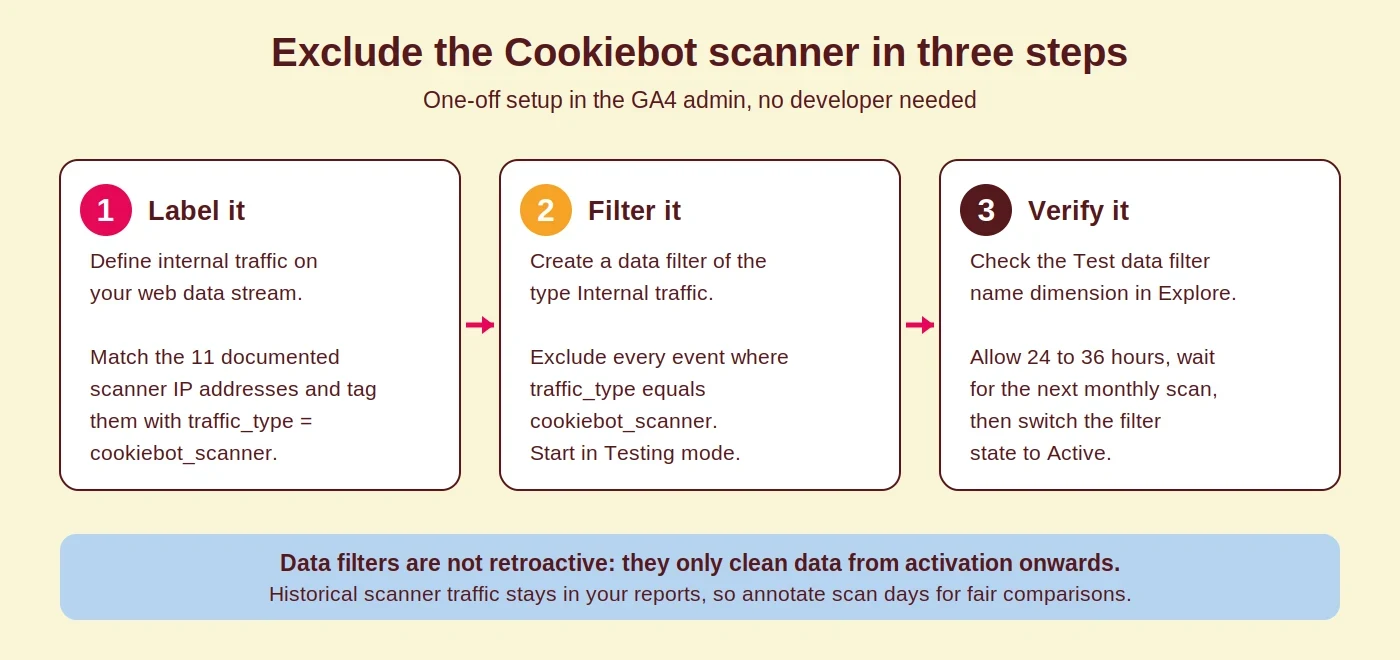
Step 1: Label the scanner as internal traffic
The first step is telling GA4 how to recognise the scanner. You do that with an internal traffic rule, which stamps every hit from the scanner’s IP addresses with a traffic_type parameter.
- In GA4, go to Admin and open Data streams under Data collection and modification.
- Select your web data stream.
- Click Configure tag settings.
- Click Show more to expand the full list of settings.
- Click Define internal traffic, then Create.
- Give the rule a clear name, such as Cookiebot scanner.
- Under traffic_type value, enter an identifier like
cookiebot_scanner. - Under IP addresses, choose IP address matches regular expression.
- Paste in the regular expression below and save.
^(20\.223\.9\.138|34\.(107\.102\.47|141\.10\.24|159\.(86\.126|168\.195|247\.222))|35\.(198\.(78\.207|137\.6|160\.49)|246\.(143\.2|191\.14)))$
Prefer to avoid regex? Add the same addresses one by one with the condition IP address equals: 20.223.9.138, 34.107.102.47, 34.141.10.24, 34.159.86.126, 34.159.168.195, 34.159.247.222, 35.198.78.207, 35.198.137.6, 35.198.160.49, 35.246.143.2 and 35.246.191.14.
These are the eleven scanner IPs from Cookiebot’s own support documentation. Check that page when you set this up, so you are always working with the current list.
Step 2: Create a data filter to exclude the traffic
The internal traffic rule only labels the scanner’s hits. To actually remove them from your reports, you need a data filter on top of it.
- In Admin, go to Data collection and modification and open Data filters.
- Click Create filter and choose Internal traffic.
- Name the filter, for example Exclude Cookiebot scanner.
- Set the filter operation to Exclude and make sure the parameter value matches the identifier from step 1, in our example
cookiebot_scanner. - Set the filter state to Testing and save.
Why Testing and not Active straight away? Because an active exclusion filter is permanent. Data that an active filter excludes is never processed, and you cannot get it back later, not even in BigQuery. Testing mode lets you confirm the filter catches exactly what you expect before anything is thrown away. Google’s own internal traffic documentation walks through the same flow.
Step 3: Test the filter, then switch it to Active
In Testing mode, GA4 keeps collecting the scanner’s events but labels them with the dimension Test data filter name, set to your filter’s name.
To verify it works, open Explore and build a simple free-form exploration with Test data filter name as a row and Event name as a second dimension. Add a filter condition where Test data filter name contains your filter name. Give GA4 24 to 36 hours to start applying the filter, and remember the scanner only visits once a month, so you may need to wait for the next scan before you see matches.
Once you have seen the scanner traffic show up under the test label, go back to Data filters and switch the state to Active. From that moment on, scanner hits are dropped before they reach your reports.
Want to stop the hits at the source? Block them in Tag Manager
A GA4 data filter cleans up GA4, but nothing else. The scanner still fires any other tags on your site, so it can also show up in tools like Microsoft Clarity or your ad platforms.
If you want the scanner out of every tool at once, block the tags in Google Tag Manager instead. Create a custom JavaScript variable that reads navigator.userAgent, then add a blocking trigger to your tags for any page view where that variable contains Cookiebot. This works because the scanner identifies itself honestly in its user agent. It is a bit more work than the GA4 filter, and it belongs in the category of container hygiene we covered in our guide to Google Tag Manager consultancy.
Whichever route you choose, do not block the scanner’s IP addresses on your server or firewall. That does not clean your analytics, it just breaks the monthly scan, which means your cookie declaration slowly goes stale and your consent setup no longer reflects reality.
Common mistakes we see
1. Leaving the filter in Testing forever. Testing mode only labels the traffic, it does not remove anything. If you set this up months ago and your reports still show the monthly spike, check the filter state first.
2. Expecting historical data to change. Data filters are not retroactive. The scanner traffic that is already in your property stays there. Add an annotation on scan days if you need clean comparisons with older periods.
3. Fixing one property and forgetting the rest. The internal traffic rule lives on the data stream and the filter lives on the property. If you run multiple domains or GA4 properties, repeat the setup for each one.
4. Stopping at the scanner. If a bot this well-documented was polluting your reports unnoticed, other measurement issues usually are too: double-firing tags, missing conversions, consent signals that never arrive. Scanner cleanup is a good moment to check the rest of your setup, starting with our list of common Google Ads tracking problems.
How Coby approaches this
At Coby, excluding scanner and internal traffic is a standard step in every measurement setup we build, because we work tracking first: before we touch campaigns, we make sure the data underneath them is trustworthy. A monthly bot spike sounds harmless until it feeds a Smart Bidding algorithm or a management report.
That order of operations pays off. For one B2B client, fixing the measurement foundation before optimising campaigns helped take them from two to three leads per month to four to five per week. Clean data was not a nice-to-have there, it was the starting point.
Want to know what your own setup looks like under the bonnet? Our data and analytics team audits GA4 properties, tag setups and consent flows as a package.
Conclusion
Cookiebot’s monthly scan is useful, but it has no place in your reports. Label the eleven scanner IPs as internal traffic, exclude them with a data filter, test before you activate, and repeat the setup for every property you run. Ten minutes of work, and one recurring data distortion is gone for good.
Questions about this setup, or about the rest of your measurement stack? Get in touch, we are happy to take a look.
Frequently asked questions
Why does Cookiebot show up in my GA4 reports?
Cookiebot scans your website once a month to detect the cookies in use. The scanner renders your pages like a real browser, so your Google tag fires and GA4 records the scan as normal traffic.
Which IP addresses does the Cookiebot scanner use?
The scanner uses eleven fixed IP addresses that Usercentrics publishes in its support documentation. According to Usercentrics, scans cannot come from any other IP, which makes IP-based filtering reliable.
Will the GA4 filter remove past scanner traffic?
No. Data filters only apply to data collected after the filter is active, so historical scanner traffic stays in your reports. Use annotations or date comparisons to account for it.
How long does a GA4 data filter take to work?
Google states it can take 24 to 36 hours before a new data filter is applied to incoming data. Since the scanner only visits monthly, full confirmation may take until the next scan.
Can I block the scanner in Google Tag Manager instead?
Yes. Add a blocking trigger for page views where the user agent contains Cookiebot. That stops the hits before they reach GA4, Clarity, or any other tag in your container.
Does filtering the scanner affect my cookie scans?
No. A GA4 data filter or GTM blocking trigger only affects your measurement. The scan itself keeps running. Just avoid blocking the scanner IPs at server level, because that does break the scan.
Written by Marloes Slotboom, founder of Coby Agency. Last updated: September 2026.