
If you run Demand Gen or Display at scale, you will eventually hit the same problem. Your ads start showing on placements you would never intentionally choose: obscure games portals, low-quality content farms, domains ending in .xyz that nobody has ever typed on purpose.
The Google Ads placement reports are useful, but reviewing them across multiple accounts and keeping exclusions tidy takes time. This MCC-level script streamlines that workflow while keeping one human checkpoint in place.
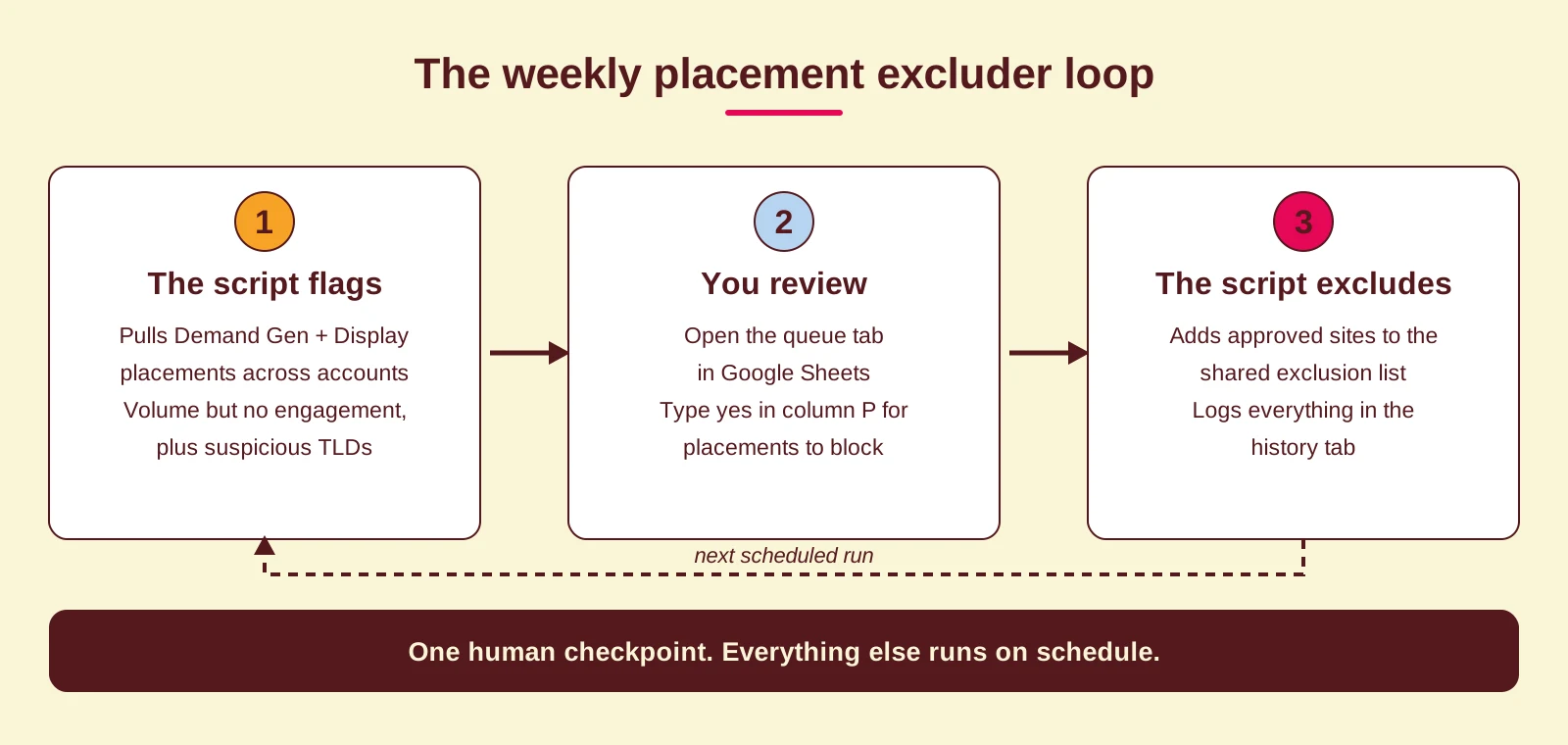
You review. You approve exclusions. The script does the rest.
View the full MCC script here. It is built with Google Ads Scripts, so you can read every line before you run it.
What this MCC script does
Placement waste is one of the control gaps we also cover in our advanced Performance Max strategies. For Demand Gen and Display, a script can close most of that gap on a schedule.
This script is built for MCC accounts and works across multiple child accounts. It:
- Reads your approvals from the existing queue tab. The only manual action is typing yes in column P (exclude).
- Applies website placement exclusions. It adds approved website placements to a shared placement exclusion list in each labelled account.
- Pulls fresh flagged placements for Demand Gen and Display, and rewrites the queue. It keeps your previous approvals by matching a unique row_key.
- Keeps an audit log in the history tab, without duplicates. It uses PropertiesService to de-dupe rows across runs, so history stays clean.
Important limitations: mobile apps and YouTube
There are two limitations to be aware of before you rely on this workflow.
1) Mobile app placements. Google Ads Scripts cannot exclude mobile app placements via shared placement exclusion lists. When the placement looks like an app, the script will skip it (to prevent “valid URL format” errors).
If you want to block apps, do it manually in Google Ads: Insights and reports → Where and when your ads showed → Where ads showed. Then exclude the relevant apps or categories there, or set them up as account-level placement exclusions.
2) YouTube placements. For Demand Gen and Display, scripts often return YouTube inventory as youtube.com rather than a specific channel or video. That means this workflow is great for website placements, but it is not a reliable way to manage channel-level or video-level exclusions. If you want those, use the Google Ads UI placement report.
How the script flags placements
The script pulls placement performance from the last X days and flags rows if they match one or more conditions.
Default thresholds in the config:
- Impressions ≥ 200. Only look at placements with enough volume to judge.
- Clicks < 10. Flags low-engagement placements.
- CTR < 1%. Flags placements with weak clickthrough.
- Bad TLD list. Flags suspicious domains like .xyz, .icu, .click and similar.
You can tighten or loosen these depending on account size and volume.
Recommended thresholds
Use these as a starting point and adapt per account type.
For lead gen (most B2B):
- Impressions: 200
- Clicks: 10
- CTR: 1%
- Lookback: 30 days
For smaller accounts (low volume):
- Impressions: 100
- Clicks: 5
- CTR: 0.7%
- Lookback: 30 days
For bigger accounts (high volume):
- Impressions: 500
- Clicks: 20
- CTR: 1% to 1.5%
- Lookback: 14 to 30 days
Tip: start conservative. You can always exclude more later, but restoring reach after aggressive exclusions is slower.
Step by step: how to set up the script
Step 1. Add the full script code. Create a new MCC-level Google Ads Script and paste in the full code. View the script here. Then scroll back up to the CONFIG section and update the values for your situation:
- SPREADSHEET_URL
- ACCOUNT_LABEL
- thresholds
- ENABLE_EMAIL_ALERTS and ALERT_EMAILS
Step 2. Create an empty Google Sheet. Create a new sheet, copy the URL and paste it into:
var SPREADSHEET_URL = "PASTE_YOUR_SHEET_URL_HERE";
After the first run, the script will create these tabs:
- queue (your review list)
- history (audit log)
- allowlist (optional safety list)
- instructions (guide for your team)
Step 3. Label the accounts you want included. Apply this label to the child accounts you want the script to manage:
var ACCOUNT_LABEL = "MCC_placement_excluder";
Only labelled accounts are processed.
Step 4. Configure thresholds and email alerts. In the config section, set your thresholds (impressions, clicks, CTR, lookback) and your recipient email address.
Step 5. Preview and run. Click Preview first and check the logs. Then run it. After the run, open your Google Sheet and go to the queue tab.
Your workflow: the only manual action
Open the queue tab. Review the placements. Then:
✅ Type yes in column P (exclude) for placements you want to block.
On the next script run, those approved placements get added to the account’s placement exclusion list: “Auto Excluded . Display + Demand Gen”.
Frequency: when should you schedule it?
A simple weekly rhythm works well.
Weekly, low effort:
- Schedule the script for every Monday morning
- You review the queue list once per week
- You mark exclude = yes
- Next Monday’s run applies those exclusions and refreshes the queue
Twice per week, faster cleanup:
- Schedule Monday and Thursday
- Review twice per week
How the Google Sheet tabs work
queue tab. This is the working list.
- Contains the flagged placements for review
- Approvals persist between runs via row_key
- Only edit column P (exclude)
history tab. This is an audit log. It is de-duped.
- You do not need to edit it
- It helps you track what was flagged and when
allowlist tab. Optional. Add placements you never want excluded, one domain per row in column A. For example:
- youtube.com
- mail.google.com
- nytimes.com
instructions tab. A built-in guide your team can rely on. It includes the mobile app limitation and the one thing that matters: only column P.
Common questions and troubleshooting
Why do I still see youtube.com instead of channels or videos? For Demand Gen and Display, scripts often return YouTube inventory as youtube.com. If you need channel or video exclusions, use the Google Ads UI placement report.
Why didn’t a placement get excluded? Most common reasons:
- It was an app placement and got skipped
- It was not a valid domain format
- It is on the allowlist
- The row was not marked yes in column P
- The account was not labelled correctly
How Coby approaches this
Scripts like this one are part of account hygiene, not a strategy on their own. In our PPC strategy work, placement review sits in the weekly rhythm next to search terms, budgets and conversion data. The order matters: if your conversion tracking is unreliable, you are approving and excluding placements based on numbers you cannot trust, which is why we always start tracking-first.
Setting this up is part of our Google Ads management work, together with the rest of the account hygiene. If you want help setting this up across your MCC, or you want a more automated version (for example, auto-excluding certain TLDs and patterns), reach out to us or email hello@cobyagency.com.
FAQ
What is this MCC script for?
It helps you review flagged Demand Gen and Display placements across multiple child accounts and apply approved website exclusions via a shared placement exclusion list.
What is the only manual step?
You review the queue tab and type yes in column P (exclude) for the placements you want to block.
Can this script exclude mobile app placements?
No. Google Ads Scripts cannot exclude mobile app placements through shared placement exclusion lists, so the script skips app-like placements to avoid errors. Exclude apps manually in the Google Ads UI instead.
Why does YouTube show up as youtube.com instead of channels or videos?
For Demand Gen and Display, scripts often return YouTube inventory as youtube.com rather than channel or video level detail. Use the Google Ads UI placement report if you need channel or video exclusions.
Where do approved exclusions get added?
Approved website placements get added to a shared placement exclusion list in each labelled account, named “Auto Excluded . Display + Demand Gen”.
Why didn’t something get excluded even after a run?
Common causes include: it was an app placement (skipped), an invalid domain format, it is on the allowlist, the row was not marked yes in column P, or the account label was not applied correctly.
Written by Marloes Slotboom, founder of Coby Agency. Last updated: October 2026.