
 Coby Agency
Last updated: September 2026. Written by Marloes Slotboom, founder of Coby Agency.
If you run Google Ads or Meta Ads and rely entirely on client-side tracking, part of your conversion data disappears before it ever reaches the ad platform. Ad blockers strip tracking scripts, Safari and Firefox restrict cookies, and declined consent stops tags from firing at all.
Server-side tracking recovers a meaningful share of that lost signal. This guide is for founders and marketers without an in-house data team. It explains what server-side tracking does, what you need in place first, and how to set it up step by step with Google Tag Manager and TAGGRS, the hosting platform Coby Agency uses for client setups.
New to the concept? Start with server-side tagging explained. Still choosing a hosting route? Our server-side tracking tools comparison walks through the options and what they cost.
What server-side tracking is and why it matters
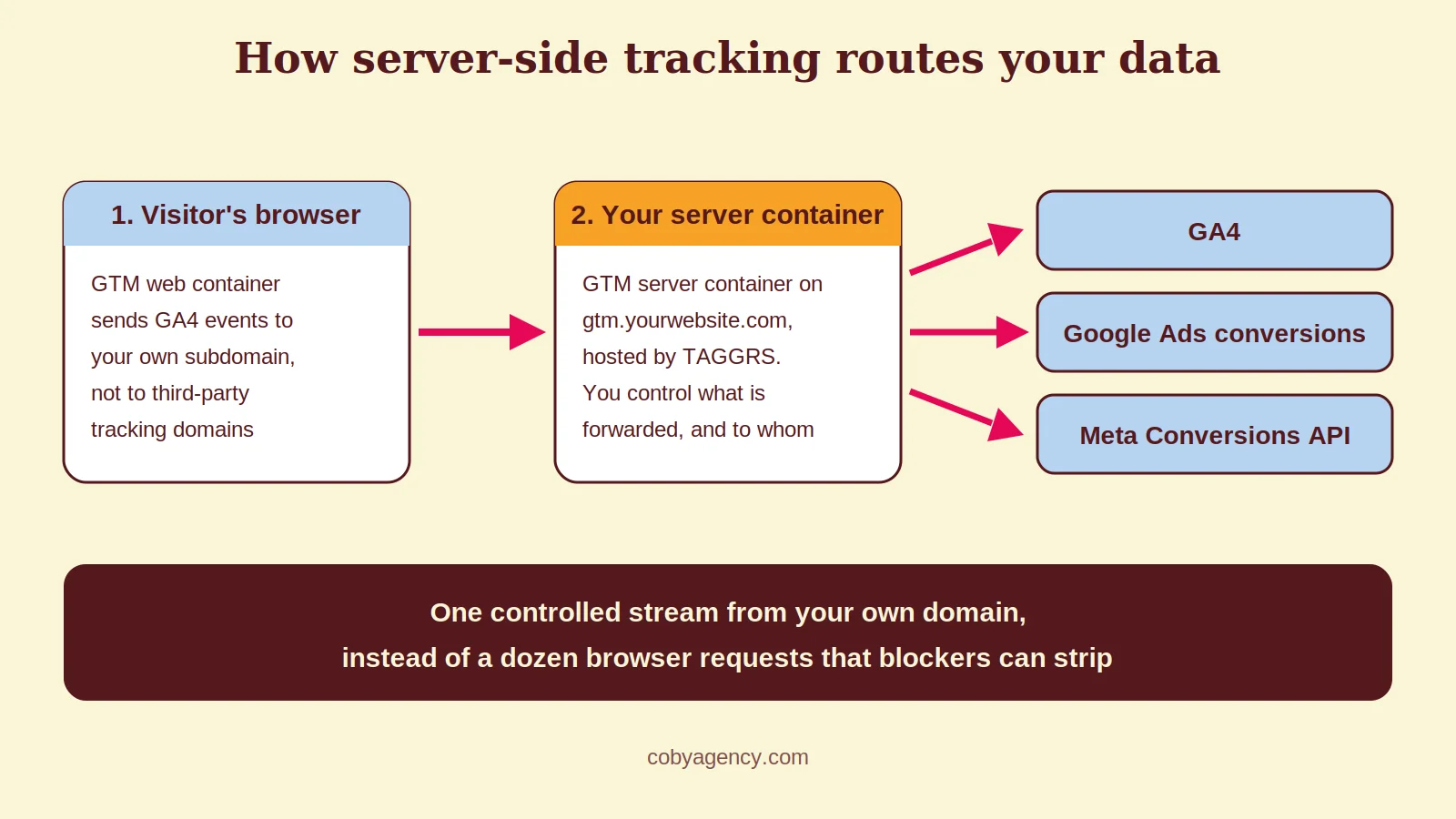
Server-side tracking means your website sends event data to a server you control, and that server forwards it to Google, Meta and your analytics tools. The visitor’s browser stops being the single point of failure.
Standard tracking works like this: a visitor lands on your site, JavaScript fires in their browser, and that script sends conversion data straight to Google or Meta. The problem is that the browser has become an unreliable messenger.
Safari’s Intelligent Tracking Prevention caps cookies set by JavaScript at seven days, and at 24 hours when someone arrives through a link carrying tracking parameters. Firefox blocks known tracking domains by default. Ad blockers strip tracking scripts before they load. App Tracking Transparency on iOS limits mobile attribution. None of this is temporary; it is the direction browsers have been moving for years.
With a server container on your own subdomain, tracking requests go to your domain instead of to google-analytics.com or connect.facebook.net. Blockers that work from lists of known tracking domains have far less to grab hold of. And because your server can set cookies over HTTP rather than through JavaScript, they can outlive the seven-day cap. Google’s documentation gives a good technical introduction to server-side tagging.
Why it matters for your ad performance
Smart Bidding on Google and Advantage+ on Meta optimise on the conversion signals they receive. When a slice of your conversions never arrives, the algorithms learn from incomplete data, and your reported CPA and ROAS drift away from reality. Campaigns that look mediocre in the interface may simply be under-reported.
How big that gap is depends on your audience. A technical B2B audience runs more ad blockers than an average consumer audience, and a customer base full of iPhone users loses more signal than one on Android and Chrome. That is why we do not quote a universal recovery percentage: measure the difference in your own account after go-live instead.
Broken measurement usually shows up in Google Ads first. These are the eight Google Ads tracking problems we find most often in audits.
Beyond volume, server-side tracking gives you control. You decide which data each platform receives. You can hash or strip fields before they leave your server, and you can enforce consent at the server layer instead of hoping every script respects it. Since March 2024, Consent Mode v2 has been mandatory for advertisers using Google’s platforms in the EEA, and it integrates directly with server containers.
What you need before you start
Four things, in this order:
1. A GTM web container already live on your website. This is where your current client-side tags live, and where you will make one small change to route events through the server.
2. A GA4 property receiving events through that web container. GA4 is the bridge: the event stream your website already sends to GA4 is exactly what your server container will intercept and distribute.
3. A TAGGRS account. TAGGRS hosts your GTM server container, so you do not need to run your own Google Cloud project. It is free up to 10,000 requests per month, with paid plans from around €22 per month. Alternatives such as Stape or a self-managed Google Cloud Run setup work too; the tools comparison linked above covers when each makes sense.
4. A subdomain on your own domain, for example gtm.yourwebsite.com. This is what makes tracking requests first-party, and it is the piece that ad blockers struggle with most.
Coby’s server-side tracking setup process
This is the same seven-step process we run in every tracking and analytics setup, from first login to validation.
Step 1: create a TAGGRS account and project
Create an account at taggrs.io and add a new setup in the dashboard. You can connect your Google account so TAGGRS pulls in your existing GTM containers, or configure everything manually.
Give the project a clear name tied to the website. Everything related to that tracking setup lives inside this project.
Step 2: create a server container in GTM
In Google Tag Manager, create a new container and choose Server as the target platform. Then select the option to manually provision your tagging server.
GTM shows your container configuration code. Copy it and paste it into your TAGGRS project. TAGGRS uses this code to provision the infrastructure that hosts your server container.
Step 3: point your subdomain at the server container
In TAGGRS, open the domain settings for your project. You will get a server address to point your subdomain at with a CNAME record, which you add in the DNS settings at your hosting provider or registrar.
Once the DNS change propagates, usually within a few hours, your server container answers on your own subdomain. From that moment, tracking requests come from your domain rather than from a known third-party tracking service.
Step 4: route your Google tag through the server container
In your GTM web container, open your Google tag (the tag that sends data to GA4) and set the server container URL to your subdomain, for example https://gtm.yourwebsite.com. Google documents this option in its guide on sending data to server-side Tag Manager.
This single change tells the tag to send events to your server container first instead of directly to Google. Save and publish the web container.
Step 5: configure tags in the server container
Inside the server container, set up the tags that receive events and forward them to each platform. TAGGRS provides ready-made templates for the most common setups, which saves a lot of manual work.
The three tags most accounts need:
GA4 tag: receives events from your web container and passes them to Google Analytics. Add your Measurement ID and fire it on all events.
Google Ads conversion tag: sends conversion events to Google Ads. Add the Conversion ID and Conversion Label for each conversion action. If your conversion actions need work first, start with our guide to Google Ads conversion tracking.
Meta Conversions API tag: the server-side counterpart of the Meta Pixel. It sends purchases, leads and other events to Meta through the Conversions API, and it fires even when the browser Pixel is blocked.
Store your Measurement IDs, Conversion IDs and Pixel ID in constant variables, so you enter each one once and reference it across tags.
Step 6: test before you publish
Open Preview mode on your web container and trigger events on the site. Open Preview on the server container in a second tab. The same events should appear in both, which confirms the routing works.
Check that the server container tags return 200 responses. Any 400 or 500 status points to a configuration issue to resolve before going live. Then compare GA4 DebugView with the server container: the events should match.
Step 7: publish and monitor
Publish the server container. In the first weeks, compare your Google Ads and Meta conversion volumes with the weeks before, and check both against your CRM or backend. A moderate increase is normal, because the setup now captures events browser tags were missing. A sudden doubling is not; that points to a deduplication problem.
After that, audit monthly: tags still firing, subdomain still resolving, platform numbers still consistent with your backend.
Run client-side and server-side together
Server-side tracking does not replace your browser tags. It runs alongside them. The Pixel and GA4 web tag keep firing for visitors who allow them, and the server-side setup catches what they miss. Together they give you the widest coverage.
That makes deduplication essential. If the browser Pixel and the Conversions API both report the same purchase, Meta counts it twice unless both events carry the same event ID. Meta keeps the first event it receives and discards the duplicate. Configure your web container to generate a unique event ID per conversion and send it through both routes. Our guide on the Meta Conversions API covers this in more depth.
Google Ads deduplicates using the click identifier, but keep an eye on conversion volume after go-live. An unusual spike is your cue to check for double counting.
Common mistakes we see
Migrating before the basics are right. A server container faithfully forwards whatever it receives, including wrong or duplicate events. Fix your conversion setup and dataLayer first. Our GTM audit approach explains what to check.
Ignoring consent. Server-side tracking is not a way around consent. Forward consent signals to the server container and respect them there. Done properly, this makes compliance stronger, not weaker.
Skipping deduplication. Double-counted conversions inflate your results and mislead Smart Bidding just as badly as missing ones.
Treating it as set-and-forget. DNS records change, templates update, platforms deprecate fields. Without a monthly check, a silent failure can cost you weeks of data.
How Coby approaches this
Tracking is the first thing we fix in every account, before touching campaigns. That is the core of our tracking-first approach to performance marketing: bidding algorithms are only as good as the data you feed them.
For one B2B client, rebuilding measurement on this exact GTM and TAGGRS setup, and then restructuring campaigns on top of the clean data, took lead volume from 2 to 3 leads per month to 4 to 5 per week. The setup itself did not write better ads. It made the signal complete enough for the algorithms and for us to see what actually worked.
Server-side data also becomes the backbone of your first-party data strategy: one controlled stream you own, whatever browsers change next.
Get your setup checked
Server-side tracking with GTM and TAGGRS is one of the highest-leverage fixes for advertisers losing signal to blockers and browser restrictions. The setup takes a focused day or two, and the data quality improvement compounds in every campaign decision after it.
Not sure whether your current tracking is losing conversions, or whether your setup is ready for the switch? Get in touch and we will take a look at your measurement first.
Frequently asked questions
How long does it take to set up server-side tracking with GTM and TAGGRS?
For a technical marketer following a clear process, one to two focused days, including DNS propagation and testing. Ongoing maintenance after that is a short monthly check.
What does TAGGRS cost?
TAGGRS is free up to 10,000 requests per month, with paid plans starting around €22 per month. Running your own server container on Google Cloud costs roughly $45 per instance per month, and Google recommends multiple instances for production.
Do I still need the Meta Pixel with server-side tracking?
Yes. Run the browser Pixel and the Conversions API in parallel and deduplicate with a shared event ID. Meta keeps the first event received and discards the duplicate, so the combination gives better coverage than either route alone.
Does server-side tracking recover all lost conversions?
No. It recovers signal lost to ad blockers and browser restrictions, but consent choices still apply: data from visitors who decline tracking is not forwarded. The gap it closes varies by audience, which is why you should measure it in your own account.
Is server-side tracking GDPR-compliant?
Yes, when configured correctly. It does not bypass consent; it gives you a stronger enforcement point, because you control exactly what leaves your server. Consent Mode v2, mandatory in the EEA since March 2024, integrates directly with server containers.
Can I use Stape or Google Cloud instead of TAGGRS?
Yes. Stape and a self-managed Google Cloud Run setup both host GTM server containers. TAGGRS is our default because it is built specifically for this job and needs no cloud engineering knowledge, but the right choice depends on volume and in-house skills.